Magzter GOLDで無制限に
10,000以上の雑誌、新聞、プレミアム記事に無制限にアクセスできます。
試す 金 - 無料
Your Apple ID How to Set it Up
Essential Apple User Magazine
|January 2021
If you didn’t register for an Apple ID during the initial setup of your iPad, you can set one up whenever you please, directly from the Settings app. If you want a new one, sign out with your old one and follow this guide. Either way, you’ll soon be up and running with an all-important Apple ID.
-

1 Open Settings from the Home screen and scroll to the top of the lefthand column. Tap ‘Sign in to your iPad’ right at the top of the list, then in the pop-up window, tap ‘Don’t have an Apple ID or forgot it?’
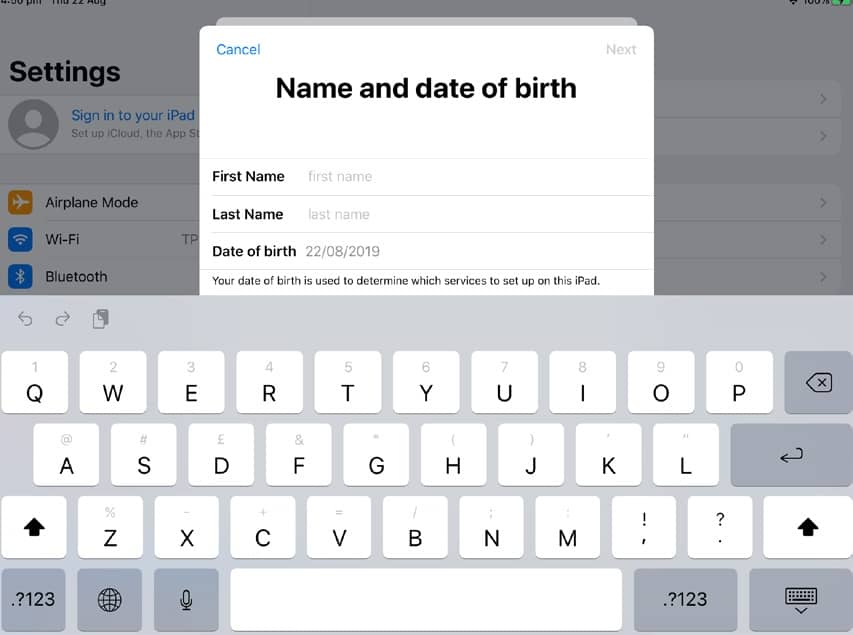
2 Tap ‘Create Apple ID’ in the next window and then, when instructed, enter your first name, last name, and date of birth. When you’ve entered these details, tap Next in the top right to move on to the next step.
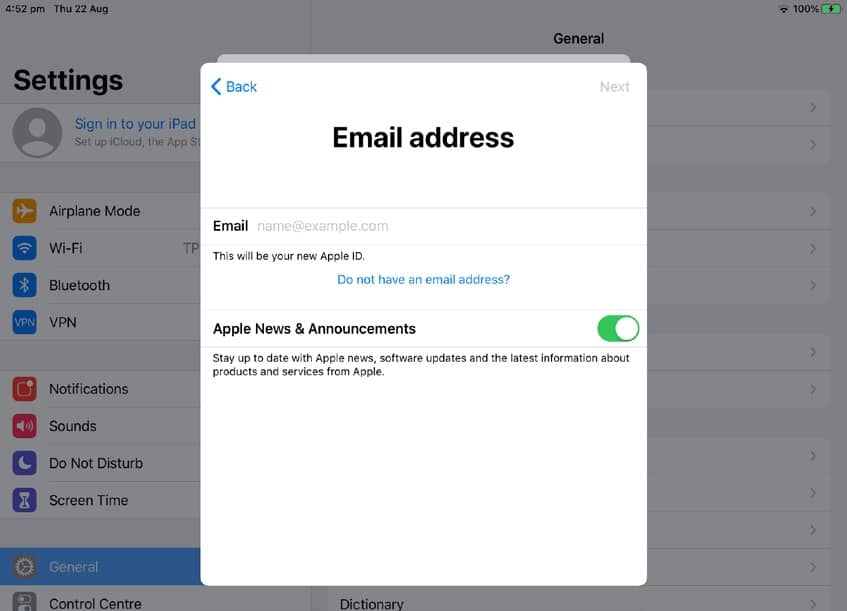
3 Next, you’re asked whether you want to use your current email address (if you have one) for your Apple ID, or get a free iCloud email address by tapping the ‘Do not have an email address?’ link. Choose one and tap Next to continue to the next step.

このストーリーは、Essential Apple User Magazine の January 2021 版からのものです。
Magzter GOLD を購読すると、厳選された何千ものプレミアム記事や、10,000 以上の雑誌や新聞にアクセスできます。
すでに購読者ですか? サインイン
Essential Apple User Magazine からのその他のストーリー

Essential Apple User Magazine
TRIBIT Stormbox Blast 2 Portable Bluetooth Speaker
A dynamic device for music on the move.

1 min
Summer 2025
Essential Apple User Magazine
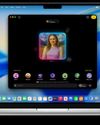
New in Apple Intelligence
Apple’s artificial intelligence tools go from strength to strength.
5 mins
Summer 2025

Essential Apple User Magazine
HP Smart Tank 7005 Wireless All-in-One Colour Printer
Is Smart Tank the future of home printing?
1 mins
Summer 2025
Essential Apple User Magazine
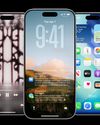
New in iOS 26
There’s some great new features coming to the iPhone.
6 mins
Summer 2025

Essential Apple User Magazine
WatchOS 26
Apple's smallest computer device also gets a new OS ending in '26'.
4 mins
Summer 2025

Essential Apple User Magazine
DxO PureRAW 5 12
The ultimate solution for RAW image quality?
1 mins
Summer 2025

Essential Apple User Magazine
tvOS 26
The new Apple TV operating system elevates design.
2 mins
Summer 2025

Essential Apple User Magazine
WhatsApp Messenge for iPad
At last, we can use WhatsApp on our Apple tablets!
1 min
Summer 2025
Essential Apple User Magazine
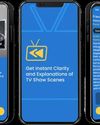
Zewind.Al
For those who've lost the plot...
1 min
Summer 2025

Essential Apple User Magazine
visionOS 26
A powerful new spatial experiences for Apple Vision Pro
2 mins
Summer 2025
Translate
Change font size