
Vuélvete ilimitado con Magzter GOLD
Obtenga acceso ilimitado a más de 9000 revistas, periódicos e historias Premium por solo
Intentar ORO - Gratis
Master Quick Actions
Mac Life
|September 2023
Make your Mac life even easier with the power of Actions
REQUIRES
macOS 12 or later
YOU WILL LEARN
How to add useful Actions to Finder
IT WILL TAKE
15 minutes
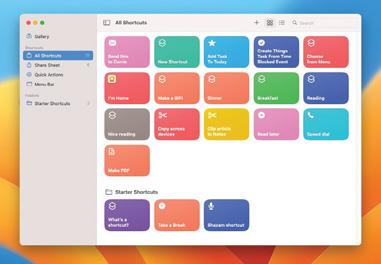
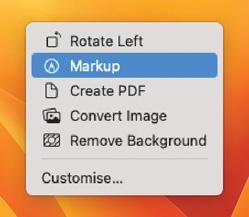
macOS IS FULL of useful things, but it's not always obvious where they are. For example, one of the really cool features in Finder is tucked away in the Ctrl-click menu under Quick Actions. Here you'll find automations to turn photos into PDFs, to open PDFs in Markup mode and to change photos from one format to another, and you can also add your own.
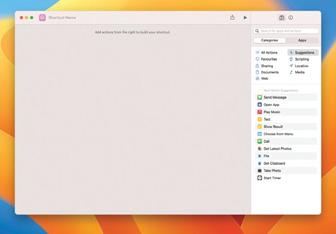
Creating automations used to be the job of Automator, which was brilliant but pretty intimidating to newcomers. The Shortcuts app, introduced in macOS Monterey, is much friendlier - but, as we'll discover, it's still more than capable of doing some clever and useful things.
Quick Actions are a great way to automate everyday things. You can use one to automatically crop and resize your photos, for example. In this tutorial, we'll create one that automatically joins multiple images together. We're sure you'll have your own ideas, so get experimenting and let us know what you come up with.
HOW TO Create a Quick Action
1 Find in Finder
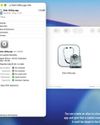
In Finder, Ctrl-click on any file and look for the Quick Actions option. Click on it to see a list of available Actions for that file (or none, depending on the file type). Here we've Ctrl-clicked on a photo; the actions do exactly what you'd expect.

Esta historia es de la edición September 2023 de Mac Life.
Suscríbete a Magzter GOLD para acceder a miles de historias premium seleccionadas y a más de 9000 revistas y periódicos.
¿Ya eres suscriptor? Iniciar sesión
MÁS HISTORIAS DE Mac Life
Mac Life
TerraMaster F4-425 NAS
Home or office four-bay network-attached storage

3 mins
March 2026

Mac Life
Satechi OntheGo 7-in-1 Adapter
Easily add more ports to your Mac, iPhone and iPad
2 mins
March 2026
Mac Life
BenQ ScreenBar Halo 2
Monitor lighting that's a sight for sore eyes
1 mins
March 2026
Mac Life
AI: WHAT YOU NEED TO KNOW
Al can be brilliant when put to proper use, but it also has some major downsides
11 mins
March 2026
Mac Life
Calibrate a MacBook Pro display
Can I calibrate my MacBook Pro 16-inch M3 Pro's XDR display, and if so, how?
1 min
March 2026

Mac Life
Edifier S880DB MKII
Great-sounding speakers with loads of connectivity
3 mins
March 2026
Mac Life
Search text in document images
I keep thousands of images of printed documents, and want to search their contents using Live Text, but Spotlight won't index them. How can I get it to work?
1 min
March 2026
Mac Life
No looking back at old icons
Can I customize the apps bundled in macOS Tahoe by giving them back their old icons?
1 min
March 2026

Mac Life
Set up multiple timers on iOS
Discover timers done right
2 mins
March 2026

Mac Life
Blue Prince
A multilayered inheritance challenge like no other
2 mins
March 2026
Translate
Change font size