Vuélvete ilimitado con Magzter GOLD
Obtenga acceso ilimitado a más de 9000 revistas, periódicos e historias Premium por solo
Learn How To… Edit Photos In Luminar 4
Windows Help & Advice
|December 2019
“As it gears up for the release of a major new version, here’s the basics on Skylum’s latest clever image-editing app”

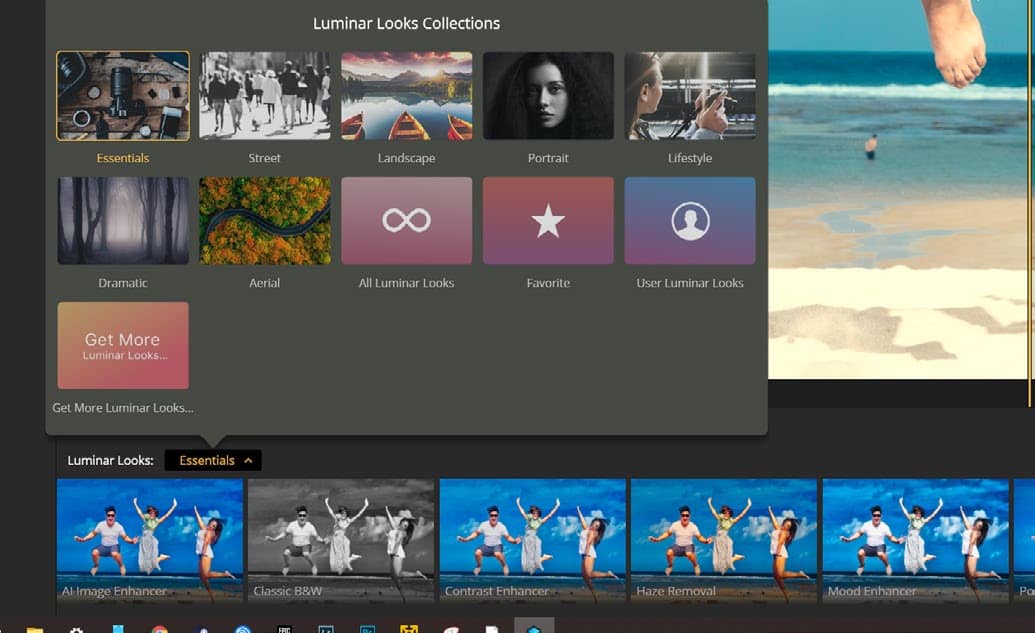
Luminar is one of those apps that deserve to be better known. Luminar 4, which will be released on November 18th, improves on previous versions with new features, including some clever ‘AI’ tools. There’s also a full house of one-shot ‘Looks’ to transform your images quickly, along with a layer and-mask-based editing suite to really get the best out of a photograph. The app works on just about any image you import into it, including JPEGS and raw files.
A free trial of Luminar can be obtained from http://skylum.com/luminar (drop down the Luminar menu at the top) where you’ll also find a full beginner’s guide. We produced this tutorial using a pre-release version of Luminar 4, and while the basic functionality will be the same, some interface features may look different on the final public release version.
Step-by-step Edit in Luminar 4
1 Opening an image
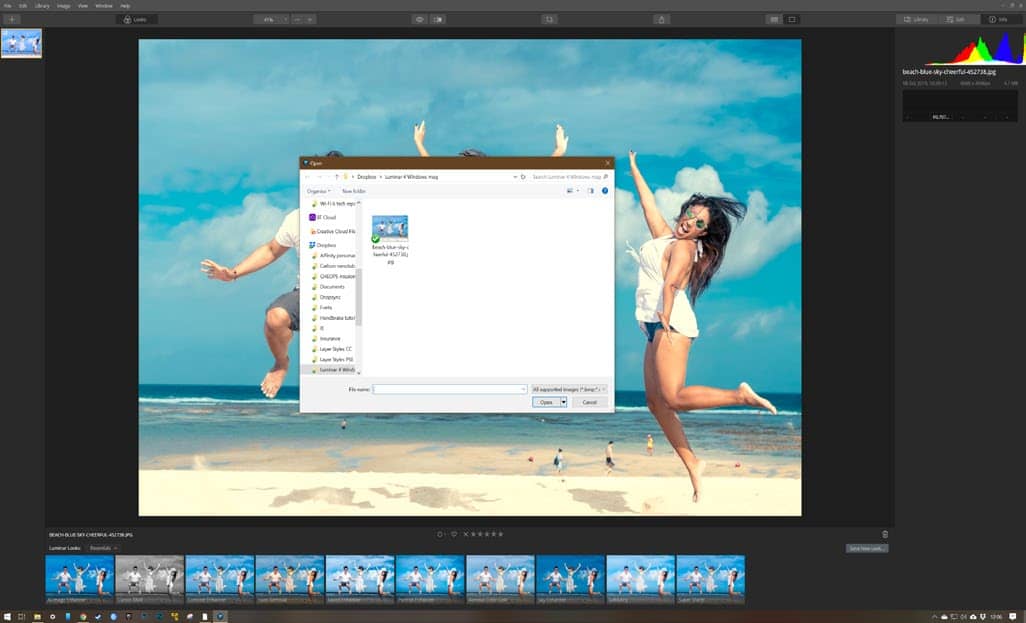
There are two ways of getting your images into Luminar. The first is to point the application at existing folders full of image files and allow it to build a catalogue. This way, you get to scroll through your collection, and edit those that stand out to you. The other is to open a single image in Quick Edit mode, which replaces the catalogue on the left with the lone file you’ve chosen.
2 Looks

Esta historia es de la edición December 2019 de Windows Help & Advice.
Suscríbete a Magzter GOLD para acceder a miles de historias premium seleccionadas y a más de 9000 revistas y periódicos.
¿Ya eres suscriptor? Iniciar sesión
MÁS HISTORIAS DE Windows Help & Advice

Windows Help & Advice
THE YEAR OF 5G
We’re on the cusp of a mobile revolution: as new 5G phones connect to new 5G networks across the UK. You’ll be able to enjoy super-fast, super-stable data access wherever you may roam.

13 mins
May 2020
Windows Help & Advice
Learn how to....Make your mouse and keyboard easier to use
“Windows 10 includes numerous options that can enhance the way you interact with it – we reveal how to make your input devices easier to use”
3 mins
May 2020
Windows Help & Advice
Nikon D780
Is the full-frame DSLR still relevant in the mirrorless age?
5 mins
May 2020
Windows Help & Advice
LOCK IT DOWN!
Nick Peers reveals how to make your PC secure against malware and other threats
18 mins
May 2020

Windows Help & Advice
Learn how to…Enhance skies in Luminar
“Luminar’s latest update is full of tools to make the skies in your images more interesting”
4 mins
May 2020
Windows Help & Advice
How to zip and unzip files
“Whether you’re freeing up storage space or sending lots of files to other people, Windows’ built-in file zipping will make your life so much easier”
4 mins
May 2020
Windows Help & Advice
HTC Vive Cosmos and Elite
Transforming VR headsets that fit any space and any game
5 mins
May 2020
Windows Help & Advice
Back up important data with File History
“The File History feature of Windows 10 can be used to roll back to earlier versions of documents, or just create backups of all your important files”
3 mins
May 2020
Windows Help & Advice
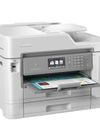
Brother MFC-J6947DW
Business inkjet with true A3 ability
5 mins
May 2020

Windows Help & Advice
Asus ZenBook Flip 15
A capable and premium 2-in-1 laptop
5 mins
May 2020
Translate
Change font size