Intentar ORO - Gratis
IOS 14: How to use the App Library
Macworld
|December 2020
Apple’s big home-screen redesign in iOS 14 centers around a new screen that contains all your apps.

Prior to iOS 14, one of the central problems with iOS (compared to Android) was that every single app you’ve ever downloaded has to exist somewhere on your home screen. You can have folders, you can have multiple home screens, but you can’t simply hide an app you don’t use very often.
The iOS 14 release (go.Macworld. com/14rl) changes all that. In addition to being able to put widgets on your home screen (see page 42), you can now remove apps without uninstalling them! A new top-level screen called the App Library contains all the apps installed on your iPhone. It’s a bit like the app drawer on most Android phones, but it looks and behaves differently.
Mastering the App Library is key to keeping a more tidy and organized iPhone and quickly being able to find the app you want. Here’s how the App Library works.
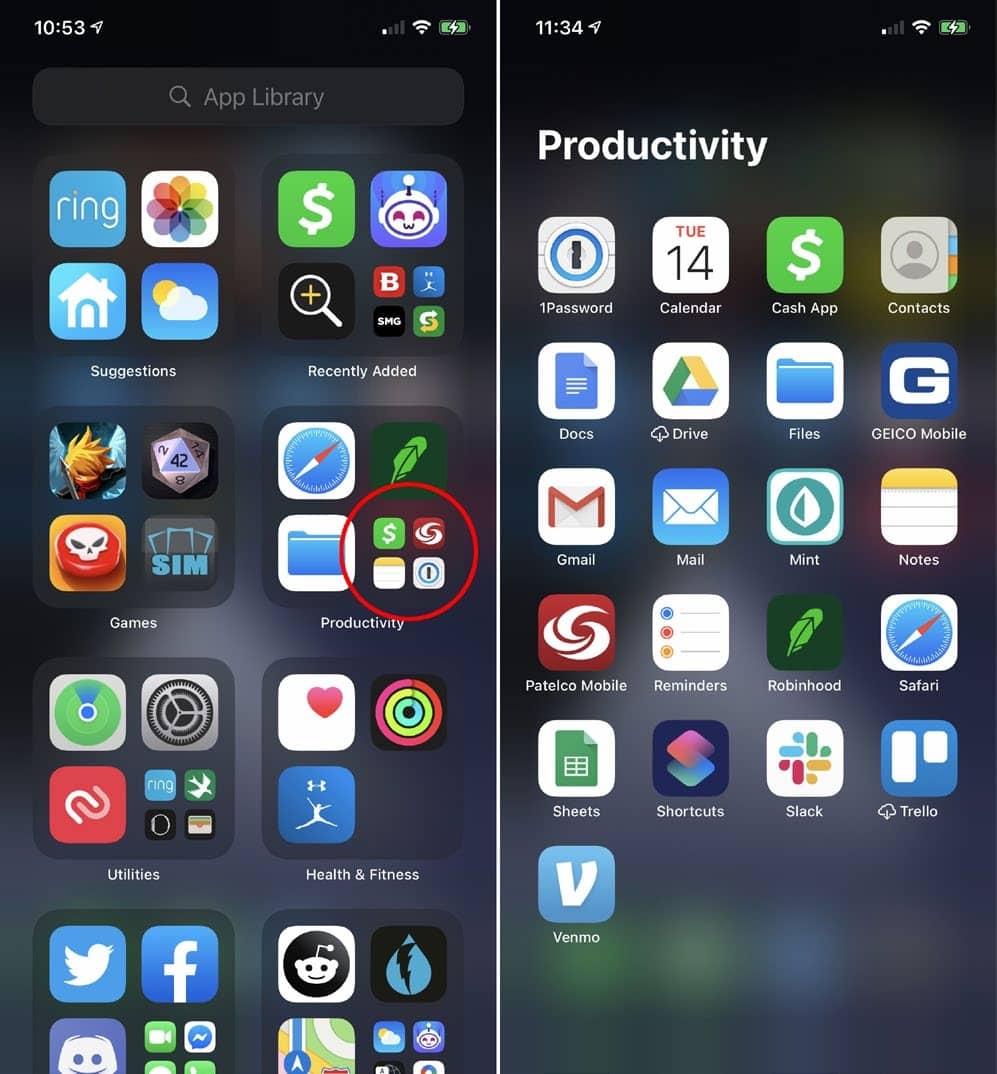
APP LIBRARY ORGANIZATION
Once you install iOS 14, you’ll find the App Library to the right of your last home screen. Just keep swiping and you’ll soon be there.
You don’t have to organize this screen. In fact, you can’t organize it. All your apps will appear in little four-square boxes.
The upper left box is always Suggestions. This will show four apps that Siri has determined you are likely to use based on the time of day, your location, etc. It gets smarter the more you use your iPhone, and the suggestions are calculated entirely on-device. No data about your app use habits or location or anything else are ever being sent anywhere.

Esta historia es de la edición December 2020 de Macworld.
Suscríbete a Magzter GOLD para acceder a miles de historias premium seleccionadas y a más de 9000 revistas y periódicos.
¿Ya eres suscriptor? Iniciar sesión
MÁS HISTORIAS DE Macworld

Macworld
Maximize iCloud+! 5 tips and tricks you need to start using right now
iCloud is a major component of the Apple ecosystem. Here's how to get the most from it.

6 mins
October 2025

Macworld
Your Apple TV+ subscription is going up by a whopping 30%
Apple's video-streaming service is now $12.99 per month.
1 mins
October 2025

Macworld
Apple TV tweaks: The 8 settings you should change ASAP
How to level up your Apple TV experience in 15 minutes.
4 mins
October 2025

Macworld
Apple announces AppleCare One with multi-device coverage for a flat fee
You can now protect three of your devices for $20 a month.
1 mins
October 2025
Macworld
KUXIU K1 15W 3-IN-1 MAGSAFE POWER BANK: COMPACT, VERSATILE PORTABLE iPHONE, WATCH, AIRPODS CHARGER
This apparently nondescript power bank looks like a slightly chunky iPhone power bank or an Amex Black Card member's pack of cards.
3 mins
October 2025

Macworld
Anker Prime 14-in-1 Thunderbolt 5 Docking Station: Mac mini-like looks and power
Smart and stylish dock that is right up to date with the latest Macs.
6 mins
October 2025
Macworld
VERBATIM TURBOMETAL PORTABLE SSD: STYLISH PORTABLE DRIVE
The Verbatim TurboMetal SSD comes in the classic NVMe form factor with a length of around 106 millimeters.
2 mins
October 2025

Macworld
How to reduce the Liquid Glass transparency effect in macOS Tahoe
If Apple's new look isn't for you, here's how to adjust it.
1 min
October 2025

Macworld
Everyone will want to try Apple's live translation this fall. Here's where to find it
Live translation runs on device, and can translate text and speech across several apps.
2 mins
October 2025

Macworld
RETROSTRIP: NOSTALGIC UTILITY BRINGS BACK THE LEGENDARY MAC CONTROL STRIP
Question for classic Mac users who go way back to System 6 or 7: Remember the Control Strip, which gave you direct access to various applications or functions at the click of a mouse? It was released in 1994 with System 7.1, with the PowerBook 500 series the PowerBook Duo 280 computers. With System 7.5.3, it was made available to all Macintoshes.
2 mins
October 2025
Translate
Change font size