Versuchen GOLD - Frei
Meet the new menu bar
Mac Life
|January 2026
The familiar and functional menu bar now comes with added control
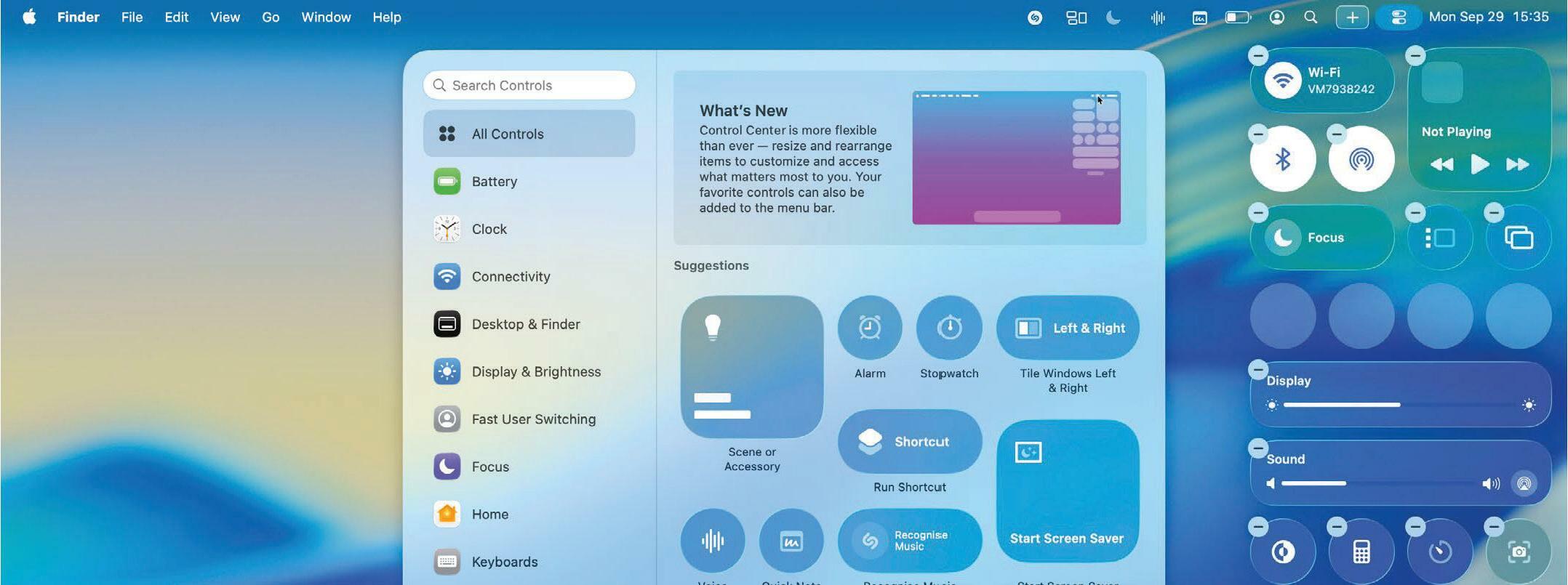
THE macOS MENU bar is familiar, functional, and mostly stays out of your way. While macOS 26 (Tahoe) hasn't revolutionized it, the update has certainly spruced things up with tweaks and new features that bring an extra level of control to your Mac.
That includes a new selection of controls and widgets, the ability to change the menu bar's appearance in granular detail, easier editing of the menu bar in conjunction with the Control Center, and more.
As well as that, you can now use secondary menu bars that work like submenus — add one and click it to access a pop-out window of apps, widgets, and controls. This is helpful if you find that cluttered menu bar items get lost under your Mac's notch. Now, you can conceal lesser-used ones until you need them, ensuring nothing gets hidden due to an overpacked menu bar.
Read on to find out how to use these features in macOS Tahoe and breathe new life into your menu bar.
HOW TO Change the menu bar's appearance
1 Show background
Don't like macOS Tahoe's invisible menu bar? You can put it back to the old, more translucent style by opening System Settings and going to Menu Bar, then enabling the toggle next to "Show menu bar background".
2 Reduce transparency


Diese Geschichte stammt aus der January 2026-Ausgabe von Mac Life.
Abonnieren Sie Magzter GOLD, um auf Tausende kuratierter Premium-Geschichten und über 9.000 Zeitschriften und Zeitungen zuzugreifen.
Sie sind bereits Abonnent? Anmelden
WEITERE GESCHICHTEN VON Mac Life

Mac Life
TerraMaster F4-425 NAS
Home or office four-bay network-attached storage

3 mins
March 2026

Mac Life
Satechi OntheGo 7-in-1 Adapter
Easily add more ports to your Mac, iPhone and iPad
2 mins
March 2026
Mac Life
BenQ ScreenBar Halo 2
Monitor lighting that's a sight for sore eyes
1 mins
March 2026
Mac Life
AI: WHAT YOU NEED TO KNOW
Al can be brilliant when put to proper use, but it also has some major downsides
11 mins
March 2026
Mac Life
Calibrate a MacBook Pro display
Can I calibrate my MacBook Pro 16-inch M3 Pro's XDR display, and if so, how?
1 min
March 2026

Mac Life
Edifier S880DB MKII
Great-sounding speakers with loads of connectivity
3 mins
March 2026

Mac Life
Search text in document images
I keep thousands of images of printed documents, and want to search their contents using Live Text, but Spotlight won't index them. How can I get it to work?
1 min
March 2026

Mac Life
No looking back at old icons
Can I customize the apps bundled in macOS Tahoe by giving them back their old icons?
1 min
March 2026

Mac Life
Set up multiple timers on iOS
Discover timers done right
2 mins
March 2026

Mac Life
Blue Prince
A multilayered inheritance challenge like no other
2 mins
March 2026
Listen
Translate
Change font size