Denemek ALTIN - Özgür
Search any website – fast!
Mac Life
|March 2026
Find your favorite websites faster than ever
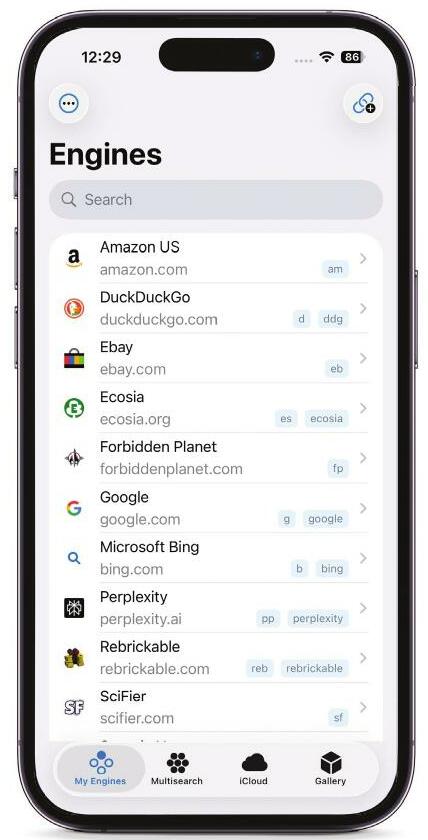
SEARCH ENGINES ARE often a stepping stone to a website, whereupon you have to search again for what you need. When you regularly visit a range of websites, you might want the process to be more efficient, and done in a single step.
Fortunately, such a capability can be added to Safari by way of third-party browser extensions. This tutorial uses xSearch, which can be downloaded from the App Store. Our walkthrough focuses on the iPhone version, but one universal purchase works across iPhone, iPad, and Mac.
First, though, you need to install and activate the extension. On iPhone and iPad, this is done in Settings > Apps > Safari > Extensions. On Mac, open Safari and go to Settings > Extensions. On iPhone or iPad, you may also need to load a website in Safari, tap the Extensions button (puzzle piece icon) in the address bar, tap Manage Extensions, then turn on xSearch. Give permissions to the extension when asked.
 Make a search
Type "w iPhone" or "wiki iPhone" into Safari's address bar, then tap the right arrow key. You bypass a search engine and go straight to Wikipedia. Or try "gpt are you Skynet?" to start asking ChatGPT whether it's about to unleash a T-1000.
 View engines

Bu hikaye Mac Life dergisinin March 2026 baskısından alınmıştır.
Binlerce özenle seçilmiş premium hikayeye ve 9.000'den fazla dergi ve gazeteye erişmek için Magzter GOLD'a abone olun.
Zaten abone misiniz? Oturum aç
Mac Life'den DAHA FAZLA HİKAYE

Mac Life
TerraMaster F4-425 NAS
Home or office four-bay network-attached storage

3 mins
March 2026

Mac Life
Satechi OntheGo 7-in-1 Adapter
Easily add more ports to your Mac, iPhone and iPad
2 mins
March 2026

Mac Life
BenQ ScreenBar Halo 2
Monitor lighting that's a sight for sore eyes
1 mins
March 2026
Mac Life
AI: WHAT YOU NEED TO KNOW
Al can be brilliant when put to proper use, but it also has some major downsides
11 mins
March 2026
Mac Life
Calibrate a MacBook Pro display
Can I calibrate my MacBook Pro 16-inch M3 Pro's XDR display, and if so, how?
1 min
March 2026

Mac Life
Edifier S880DB MKII
Great-sounding speakers with loads of connectivity
3 mins
March 2026

Mac Life
Search text in document images
I keep thousands of images of printed documents, and want to search their contents using Live Text, but Spotlight won't index them. How can I get it to work?
1 min
March 2026

Mac Life
No looking back at old icons
Can I customize the apps bundled in macOS Tahoe by giving them back their old icons?
1 min
March 2026

Mac Life
Set up multiple timers on iOS
Discover timers done right
2 mins
March 2026

Mac Life
Blue Prince
A multilayered inheritance challenge like no other
2 mins
March 2026
Listen
Translate
Change font size