
Magzter GOLD ile Sınırsız Olun
Sadece 9.000'den fazla dergi, gazete ve Premium hikayeye sınırsız erişim elde edin
Denemek ALTIN - Özgür
Soundtrack your iPhone movies
MacFormat UK
|February 2026
Use iMovie's suite of audio-enhancing tools to add slick soundtracks
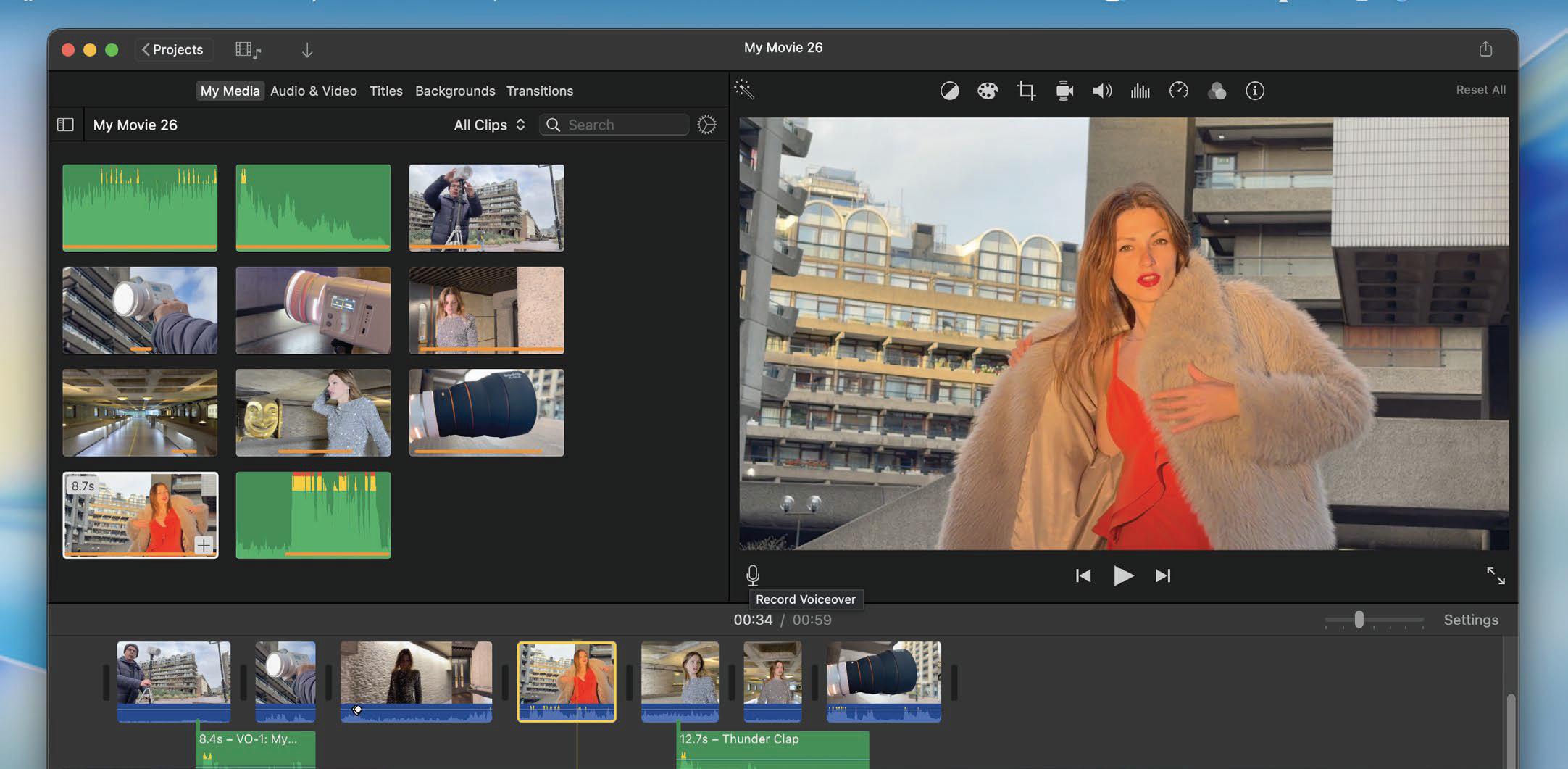
In the first two parts of our iMovie series, we explained how to create slickly edited video sequences complete with titles, transitions and layered picture-in-picture effects.
However, compelling visuals are only half of the movie story; sound is the other. Often, poor-quality sound lets the side down, with levels that are either too loud or quiet, or drowned out by music and unwanted background noises such as traffic.
In this tutorial, we'll explain how you can use iMovie's audio editing tools on Mac to give your audio tracks a post-production polish, adjusting volume to make quiet bits sound louder while reducing distorting peaks.
You'll also learn how to unify multiple clips by adding a music soundtrack that automatically dips in volume when people speak. We'll show you how to layer multiple audio tracks, such as voiceover and music, and sync sound effects so that they match onscreen events with precision.
HOW TO Adjust the volume
Enlarge the waveform
Click Settings. Drag the Clip Size slider right to enlarge the blue audio channel below the clip. This gives you a clearer view of the audio waveform displaying your clips' sound levels. Make sure the Show Waveforms checkbox is selected.


Bu hikaye MacFormat UK dergisinin February 2026 baskısından alınmıştır.
Binlerce özenle seçilmiş premium hikayeye ve 9.000'den fazla dergi ve gazeteye erişmek için Magzter GOLD'a abone olun.
Zaten abone misiniz? Oturum aç
MacFormat UK'den DAHA FAZLA HİKAYE
MacFormat UK
Affinity by Canva
A complete creative studio for zero cost

3 mins
February 2026
MacFormat UK
RSRs return from the dead
Apple announced Rapid Security Responses in June 2022, as a new means of applying urgent security patches in between macOS updates.
1 min
February 2026
MacFormat UK
Rediscover albums with Longplay
Fall in love with your albums all over again with this amazing music player
3 mins
February 2026
MacFormat UK
Set up multiple timers on iOS
Discover timers done right
2 mins
February 2026

MacFormat UK
Chants of Sennaar
Work your way beyond being lost in translation
2 mins
February 2026
MacFormat UK
Signature Slim Solar+ wireless keyboard K980
A comfortable, full-size keyboard that's always good to go
2 mins
February 2026
MacFormat UK
One more thing Apple Intelligence
Apple has promised a big AI update in 2026, and Graham Barlow feels nervous
2 mins
February 2026

MacFormat UK
Search any website - fast!
Find your favourite websites faster than ever
3 mins
February 2026

MacFormat UK
Make your ideal web browser
Make online life easy by making your web browser work your way
2 mins
February 2026

MacFormat UK
Best home printers & all-in-ones
We put six all-round home models through their printing paces
7 mins
February 2026
Listen
Translate
Change font size