Magzter GOLD ile Sınırsız Olun
Sadece 9.000'den fazla dergi, gazete ve Premium hikayeye sınırsız erişim elde edin
Denemek ALTIN - Özgür
MOVE TO A NEW MAC
MacFormat UK
|February 2026
Discover the easiest and fastest ways to transfer your dusty old data to a box-fresh Mac
A new Mac promises to open the door to faster, smoother and more efficient computing thanks to its cutting edge chips and the awesome performance of macOS 26 Tahoe. But while you're sure to have one eye on the future, the other is likely looking to the past.
For although you could start afresh or, at least, get your Mac up and running using data from your iPhone or iPad (by selecting 'Set up with iPhone or iPad' in the Setup Assistant that appears when you start up a new Mac), you may want to consider what you're leaving behind.
Your old computer will inevitably be packed with data ranging from documents and apps to settings and user accounts - stuff you'll surely want to transfer to your shiny new machine. Even if you don't want to clutter up a fresh Mac, you may still want to preserve your existing data by backing it up. There's no telling when you may need it.
Over the next six pages, we're going to show you how you can keep a copy of the data stored on an old Mac, then migrate to a new Mac and ensure that everything is set up to your liking. The processes may involve spending a little extra cash but you could see it as an investment. There's certainly no harm in regularly backing up your files, folders and other important information, and it'll make life easier in the future.
 Back up your old Mac
 Be sure to protect your data by making a copy of everything on your Mac Sath
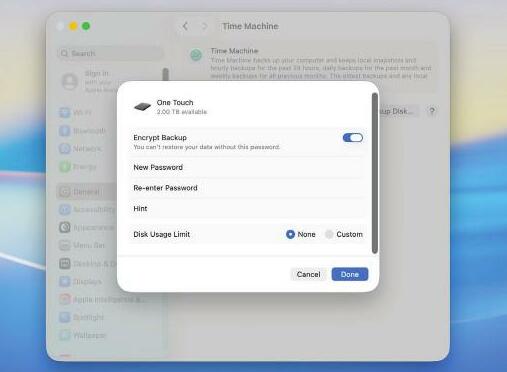
When migrating from one Mac to another, it makes sense to protect your files. This entails backing up your computer to keep your apps, photos, music, emails and documents safe and it means you'll have a copy of your data should anything go wrong during the migration process.


Bu hikaye MacFormat UK dergisinin February 2026 baskısından alınmıştır.
Binlerce özenle seçilmiş premium hikayeye ve 9.000'den fazla dergi ve gazeteye erişmek için Magzter GOLD'a abone olun.
Zaten abone misiniz? Oturum aç
MacFormat UK'den DAHA FAZLA HİKAYE
MacFormat UK
Affinity by Canva
A complete creative studio for zero cost

3 mins
February 2026
MacFormat UK
RSRs return from the dead
Apple announced Rapid Security Responses in June 2022, as a new means of applying urgent security patches in between macOS updates.
1 min
February 2026
MacFormat UK
Rediscover albums with Longplay
Fall in love with your albums all over again with this amazing music player
3 mins
February 2026
MacFormat UK
Set up multiple timers on iOS
Discover timers done right
2 mins
February 2026

MacFormat UK
Chants of Sennaar
Work your way beyond being lost in translation
2 mins
February 2026
MacFormat UK
Signature Slim Solar+ wireless keyboard K980
A comfortable, full-size keyboard that's always good to go
2 mins
February 2026
MacFormat UK
One more thing Apple Intelligence
Apple has promised a big AI update in 2026, and Graham Barlow feels nervous
2 mins
February 2026

MacFormat UK
Search any website - fast!
Find your favourite websites faster than ever
3 mins
February 2026

MacFormat UK
Make your ideal web browser
Make online life easy by making your web browser work your way
2 mins
February 2026

MacFormat UK
Best home printers & all-in-ones
We put six all-round home models through their printing paces
7 mins
February 2026
Listen
Translate
Change font size