Mit Magzter GOLD unbegrenztes Potenzial nutzen
Erhalten Sie unbegrenzten Zugriff auf über 9.000 Zeitschriften, Zeitungen und Premium-Artikel für nur
Versuchen GOLD - Frei
Power up your Mac with Alfred
Mac Life
|January 2026
Use its Powerpack to browse and manage your files and their contents
LIKE THE PERFECT butler, Alfred is far more than Spotlight search done right. Add its Powerpack, and you can use its temporary file buffer to gather multiple files and perform actions on them, browse PDFs using a ready-made workflow, and build yourself a collection of snippets to paste.
Once you’ve installed Alfred and licensed its Powerpack, visit Privacy & Security in System Settings and add Alfred to its Full Disk Access and Accessibility lists. As you proceed, you’ll be invited to give Alfred any additional access that it requires. You should also visit Login Items & Extensions settings and check that Alfred is set to “Open at Login” so it will be loaded into the menu bar at startup.
Each of these examples begins in Alfred’s Preferences, opened using the Preferences command from Alfred’s menu. Start by familiarizing yourself with those settings, including the Alfred Hotkey you’ll use to open its regular window.
HOW TO Find and collate files
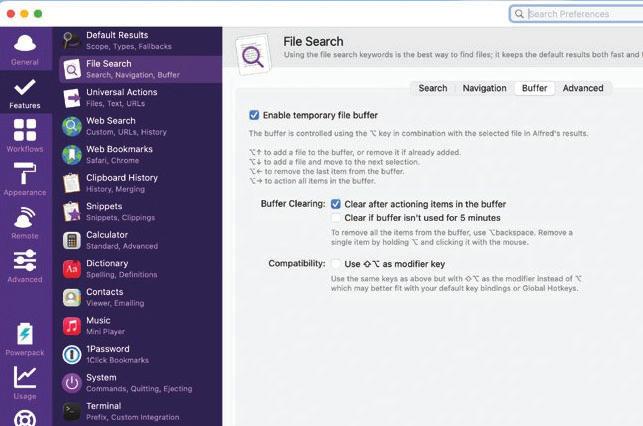 1 Enable file buffer
Open Alfred’s Preferences, select Features in its sidebar, then File Search and its Buffer view. Enable the temporary file buffer, leaving it to be cleared after actioning. Use an additional modifier key if you need to avoid any clash.
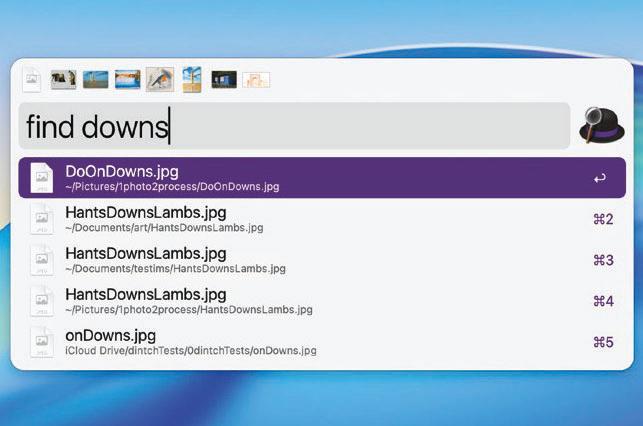 2 Find and add files

Diese Geschichte stammt aus der January 2026-Ausgabe von Mac Life.
Abonnieren Sie Magzter GOLD, um auf Tausende kuratierter Premium-Geschichten und über 9.000 Zeitschriften und Zeitungen zuzugreifen.
Sie sind bereits Abonnent? Anmelden
WEITERE GESCHICHTEN VON Mac Life

Mac Life
iPad Pro 13-inch (2025)
Wickedly fast and wickedly expensive, but boy what a tablet...

3 mins
January 2026
Mac Life
Try the new-look Camera app
Discover what's new and what's changed in latest iOS 26 version
2 mins
January 2026
Mac Life
Create a custom Lock Screen
With the arrival of iOS 26, your iPhone has never been so customizable
2 mins
January 2026

Mac Life
MAKE YOUR OLD MAC FEEL LIKE NEW
How to expand, repurpose, or sell your aging Mac
12 mins
January 2026

Mac Life
Can man live by iPad alone?
Could you really ditch your Mac in favor of Apple's tablet?
13 mins
January 2026
Mac Life
Master the new Games app
Level up your gaming experience and blast off with Apple's new games hub
2 mins
January 2026

Mac Life
Best apps and games of 2025
Apple editors name annual App Store Awards finalists
2 mins
January 2026
Mac Life
Make your iPhone more accessible
Customize your iPhone to suit your needs
3 mins
January 2026
Mac Life
Apple Watch lawsuit loss
APPLE HAS LOST the latest round of the lawsuit brought by med tech firm Masimo, alleging that the Apple Watch blood oxygen feature infringes its patents.
1 min
January 2026
Mac Life
Power up your Mac with Alfred
Use its Powerpack to browse and manage your files and their contents
2 mins
January 2026
Listen
Translate
Change font size